
Real Automation: Move a Task to 'In Review' When Its PR is Opened
You open the PR and move on to something else. The card stays in ‘In progress’, and whoever looks at the board assumes you’re still on it. It’s not a disaster, but it happens every day, and the board stops being trustworthy at exactly the moment someone should be picking the work up to review.
How to Automate State Changes in Hilbana
It’s a two-part rule: when this happens, do that. These are the steps:
Before you start: automations are a paid-plan feature. On the Free plan you can open the screen, but not create rules: it only offers the option to upgrade your plan.
-
Log into your Hilbana account. Once inside, navigate to the project where you want to set up the automation.
-
Go to the automation section. Open Settings → Automations. This is where you can create and manage all automations for your project.
-
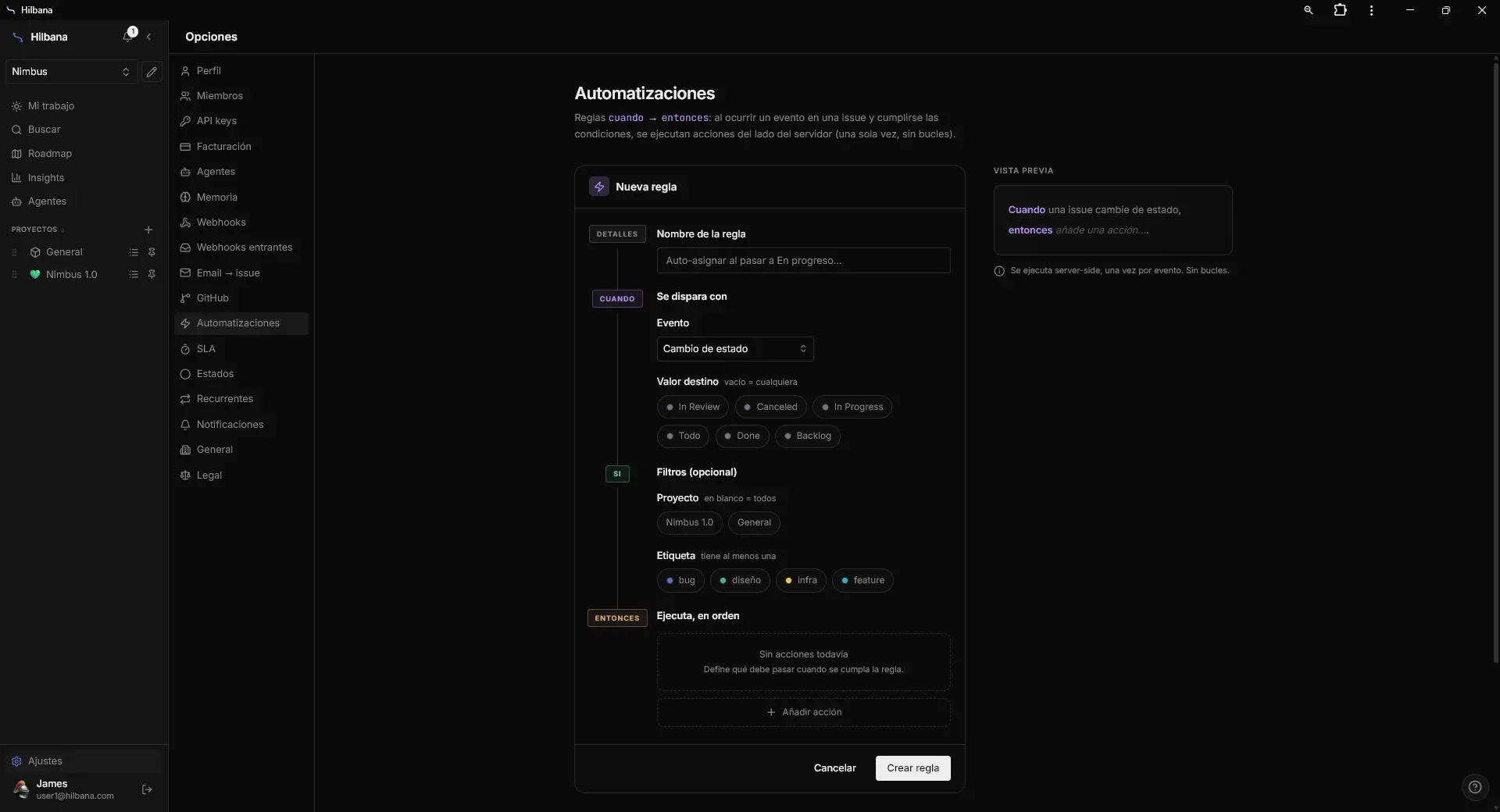
Create a new automation. Click on the ‘New automation’ button. A form will open where you define the parameters of your automation.
-
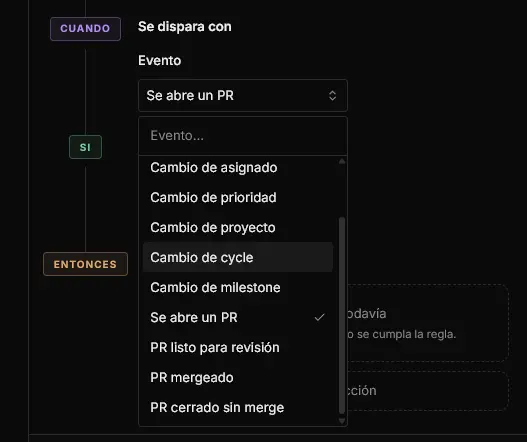
Define the trigger for the automation. Select ‘When a PR is opened’ as the trigger. This will instruct Hilbana to start the action when this event occurs.
-
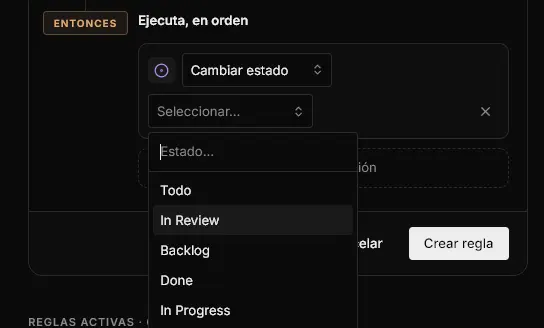
Configure the action to perform. Choose ‘Move task to In Review’ as the action to execute when the event is triggered.
-
Save and activate the automation. Review the details and save the automation. Ensure it’s activated to start functioning immediately.

Result
From now on, every PR you open moves its task to ‘In Review’ without anyone touching the board. One manual step fewer, and a state you can trust: if something is in review, it’s because there’s code waiting for someone to look at it.
If you don’t have a workspace in Hilbana yet, create one for free, no card required. The rest of the triggers and actions are in the documentation.