Invite someone to a project in read-only mode
How to share a project in read-only mode without granting access to the entire workspace.
Tutorial · Colaboración · Seguridad

When working on a project, you often need to share progress with external parties, like clients or collaborators, without compromising the privacy of your entire workspace. Hilbana allows you to invite someone to a specific project in read-only mode, ensuring they only see what you need to share.
How to invite someone to a project in read-only mode
-
Open the project you wish to share. This is crucial to limit access to this project and not the entire workspace.
-
Click ‘Share’ at the top right of the project. Here, you can manage invitations.
-
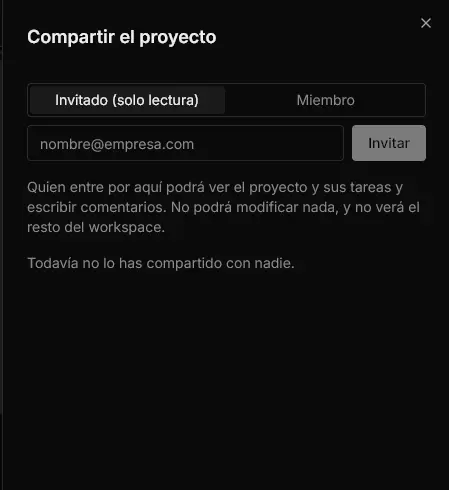
Enter the email of the person to invite. Ensure you select the ‘Guest (read-only)’ option. This will ensure the person can only view the project and not modify anything.
-
Send the invitation. The person will receive an email with a link that expires in 7 days. This link is their gateway to the project.

-
Monitor the status of the invitation. In the sharing panel, you can see if the invitation is Pending, Accepted, or Rejected. This allows you to track it properly.

-
Resend or revoke the invitation if necessary. If the email is lost or the invitation is not accepted in time, you can generate a new link from the same panel.

Result
By following these steps, you can securely and controlled share a project with someone, maintaining the integrity of your workspace. The invited person will be able to view progress and comment on the project but will not be able to make changes or access other projects.
If you haven’t tried Hilbana yet, create your free space and start organizing your projects efficiently: app.hilbana.com/signup. For more details on this feature, visit our documentation.