The editor's «/» menu: headings, lists and checklists without the syntax
Hilbana's editor stores markdown, but doesn't make you type it: hit slash and pick a heading, a list, a checklist or a code block.
Tutorial · Product

You’re describing a task, you want to separate the context from the steps, and you stop to think whether that heading takes two hashes or three. It’s a small thing, but it pulled you out of what you were explaining. And because it costs something, you end up writing one long paragraph where a list belonged.
Hilbana’s editor stores markdown, which is what makes a description work for you and for an agent alike. But it doesn’t ask you to type it from memory: hit / and pick.
What’s in the menu
Type a slash anywhere in a description and the command menu opens:
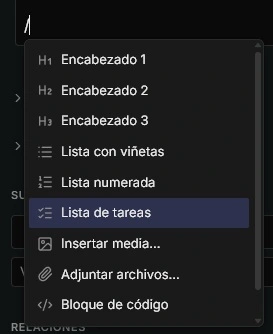
- Heading 1, Heading 2 and Heading 3
- Bullet list and Numbered list
- Checklist, with tickable boxes
- Insert media… and Attach files…
- Code block and Quote
The two file commands show up where there’s something to upload them to: a task’s description and comments. In a project description or a document they don’t appear, because there are no attachments there.
Step by step
-
Open a task’s description and click to edit it. The empty field reminds you: “Type / for commands…”.
-
Type
/. You don’t need to be at the start of the line: it works mid-sentence, after a dash, or inside a list item. -
Filter as you type. Every command answers to more words than its own name:
/task,/todoand/checkboxall land on the checklist, and/h2on a second-level heading. Move with the arrow keys, confirm with Enter, close with Escape.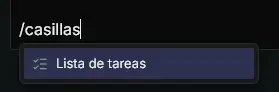
-
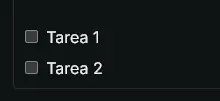
Pick Checklist and write the first item. Enter gives you the next box; Tab nests it under the previous one and Shift+Tab pulls it back out. Handy for breaking a step into substeps without building two separate lists.
-
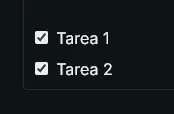
Tick the boxes without entering edit mode. In a description, the checkboxes respond to a click while you’re just reading, and the change saves itself. That’s the difference between a list that stays current and one that’s stuck on the first ticked item.
-
Paste what you already have. If you copy markdown from somewhere else, the editor understands it on paste:
##,-and- [ ]arrive converted. And copying out of the editor gives you markdown back, not a soup of HTML. -
Code blocks for what is code. A command, a log fragment or a stack trace goes in its own block, with highlighting. An agent reading that description can then tell what it has to run from what is prose.

Where it works
In every long-text field, not just a task’s description: the agent context, the definition of done and the verify command of an issue, comments, the description of a project or a milestone, project docs and templates. It’s the same editor mounted everywhere, so what you learn in one place carries over to the rest.
In comments it lives alongside mentions: @ to call someone in, / to format.
Why this matters more than it looks
A well-structured description isn’t a matter of looks. It’s what separates a brief that lands from one you have to ask about twice.
And because everything is stored as markdown, that structure survives outside the screen. The same checklist you wrote with / is the one your agent reads when it pulls the task over MCP, and the one it can tick when a step is done. When you create a task from a template, its checklist is appended to the description as that very list of boxes. There aren’t two formats, a pretty one for people and another for machines: there’s one.
Images take the same road. In a task’s description you can paste or drag a screenshot and it uploads right there, up to 3 MB per image.
A couple of shortcuts worth knowing
- Select text and a floating bar appears with bold, italic, code, link and headings, without going through the menu.
- The fixed format bar stays visible while you edit, if you’d rather use the mouse.
- A description saves itself as you write; there’s no save button to forget.
If you don’t have a Hilbana space yet, create one for free: the Free plan doesn’t expire and doesn’t ask for a card. And if you already have one, open any task, type a slash and see what comes up.