The status update nobody wants to write: the AI drafts it and you publish it
“Draft with AI” prepares a project's status update from what happened since the last one. You review it, edit it and publish it yourself. Plus foldable sections and blocks and full width in documents.
Product · Projects · AI
Everyone wants projects to have an up-to-date status update, and hardly anyone wants to write it. It gets left for Friday afternoon, written from memory, and it comes out short or comes out late, and the client (or your boss) ends up asking in the chat what should have been written down.
What it takes to write one is already in Hilbana: which tasks are done, which are in progress, which are stuck, the comments and the time logged. So we’ve added an updates section to the project page where the AI prepares the draft from all of that and you decide what goes out.
Where it is
On each project’s Overview tab there is now an Updates section, and it’s the first thing you see when you open it. It has two buttons: Draft with AI and Write by hand, to do it with no help.
And the project report, which already existed? That’s something else: the report is long, tells a whole period grouped by theme, and the AI saves it on its own as a document. The update is short, it’s for knowing how the project is going now, and you publish it.
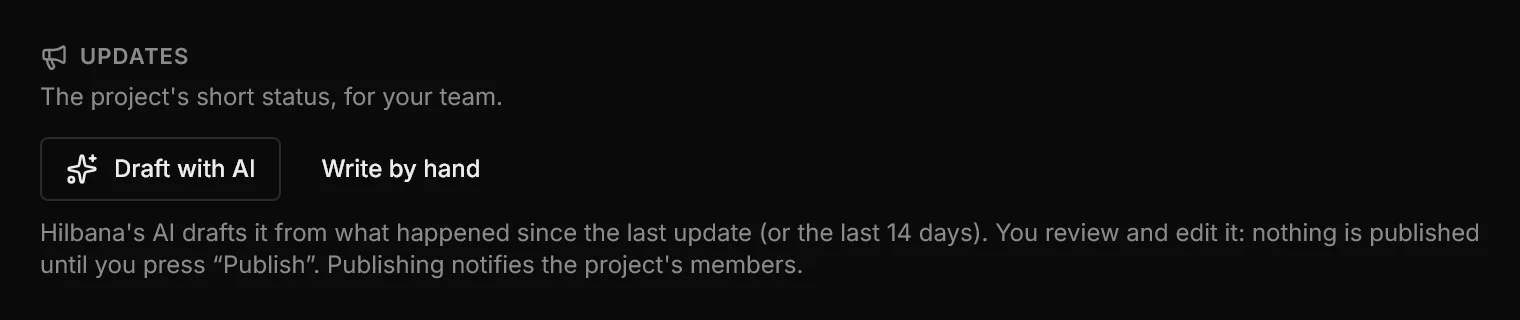
Here it is from start to finish, in 29 seconds:
What the draft says
When you press Draft with AI, Hilbana gathers what happened since the last published update (or the last 14 days, if the project has none) and hands it to the AI Hilbana provides, the same one behind the project report: no agent to connect and no key of your own to supply.
It uses the finished, in-progress, blocked and overdue tasks, the time logged and the period’s comments, and only those of that project. From that it writes four short sections: Status, Progress, Blockers and risks and Next steps, in your language.
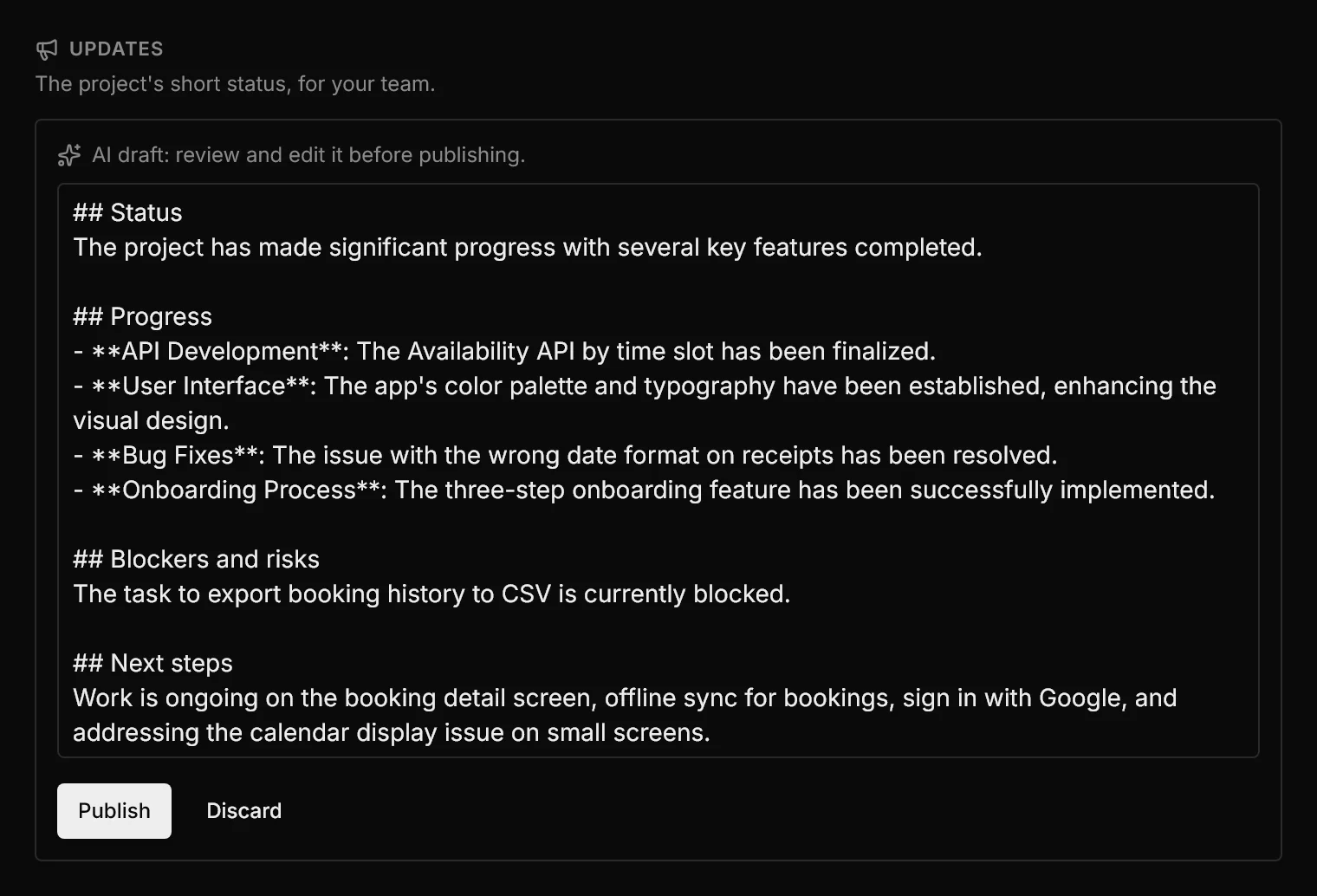
Note what it does not do:
- It doesn’t publish on its own. The draft isn’t saved anywhere: it lands in an edit box and only becomes an update when you press Publish. Discard throws it away without a trace.
- It doesn’t make things up. It is told not to guess causes, deadlines or who is to blame, and not to judge the project’s health (“on track”, “at risk”) unless the data says so. It is still a draft: read it, which is what the edit box is for.
- It doesn’t lose what you wrote. If the AI fails or isn’t configured, you see why and the text you had stays where it was.
- If nothing has happened since the last update (no finished, in-progress or blocked tasks), it doesn’t call the model: it tells you so.
You review it, edit it and publish it
The draft is plain markdown. Change what doesn’t fit, add what the AI can’t know (a meeting, a decision, next Friday) and press Publish. The update goes into the project’s history with its author and date: the latest one shows, and Show the previous opens the rest.
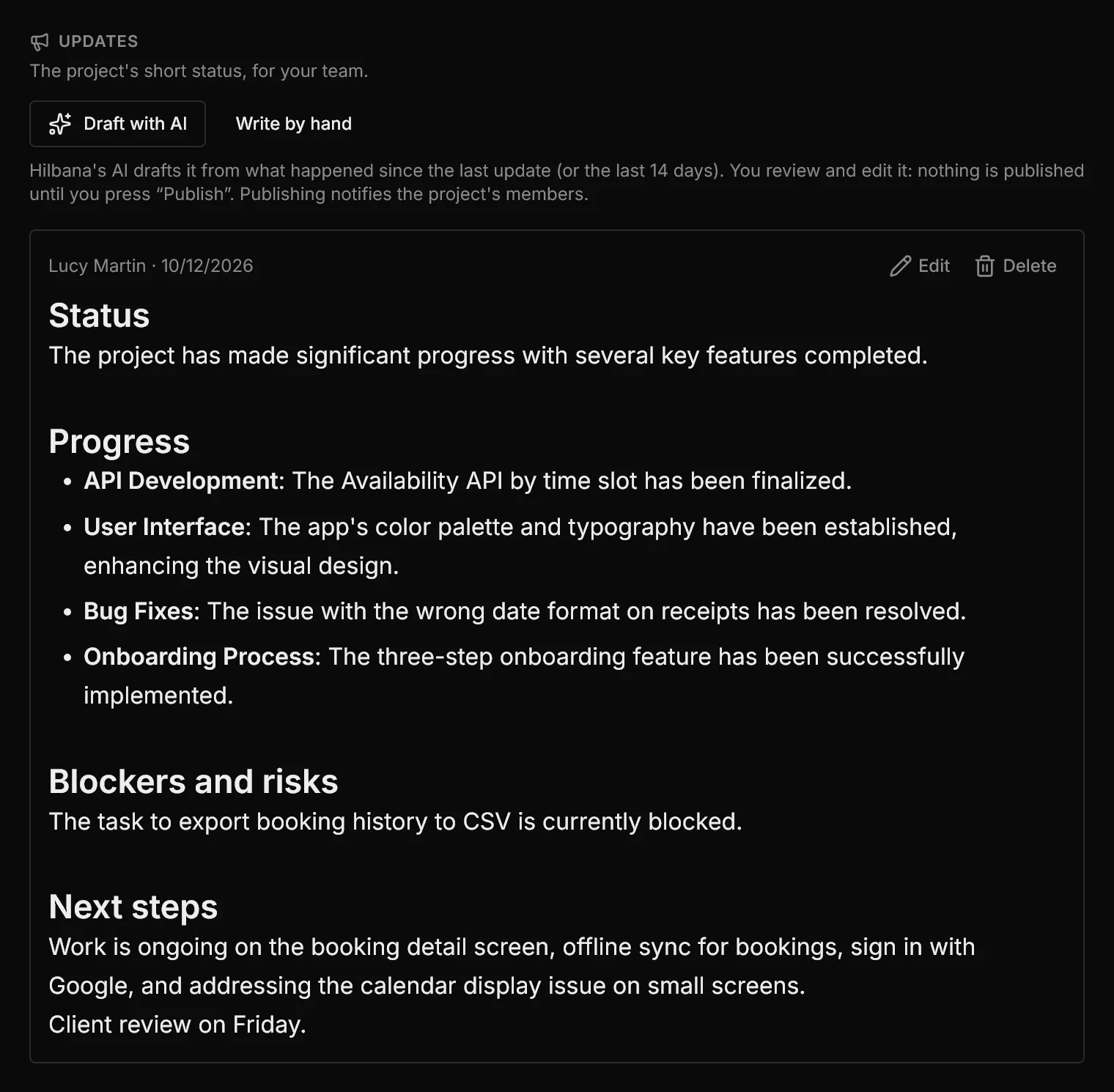
That history is also what makes the next draft useful: next time, the AI only covers what happened since this one, not the whole month again.
What happens when you publish
- The team is notified. The members who can see the project get a notification in the bell, linking to the Overview. You don’t notify yourself.
- It can be corrected and deleted. Each update has Edit and Delete; a corrected one carries the edited mark, and correcting doesn’t notify again.
- Agents read it. With the MCP tool
list_project_updates, an agent knows how the project is doing before starting on it. It is read-only: a person writes them.
Who can do what:
- Drafting, publishing, correcting and deleting is for whoever can write in the project.
- Someone who can only read it (a guest with read access, for example) sees the history but not the buttons.
- On the Free plan there is one draft per project per day; on Pro, no limit. Writing one by hand doesn’t count.
Also in documents: reading long text without getting lost
With the same idea that long text has to be readable, this week we’ve touched how project documents and task descriptions read.
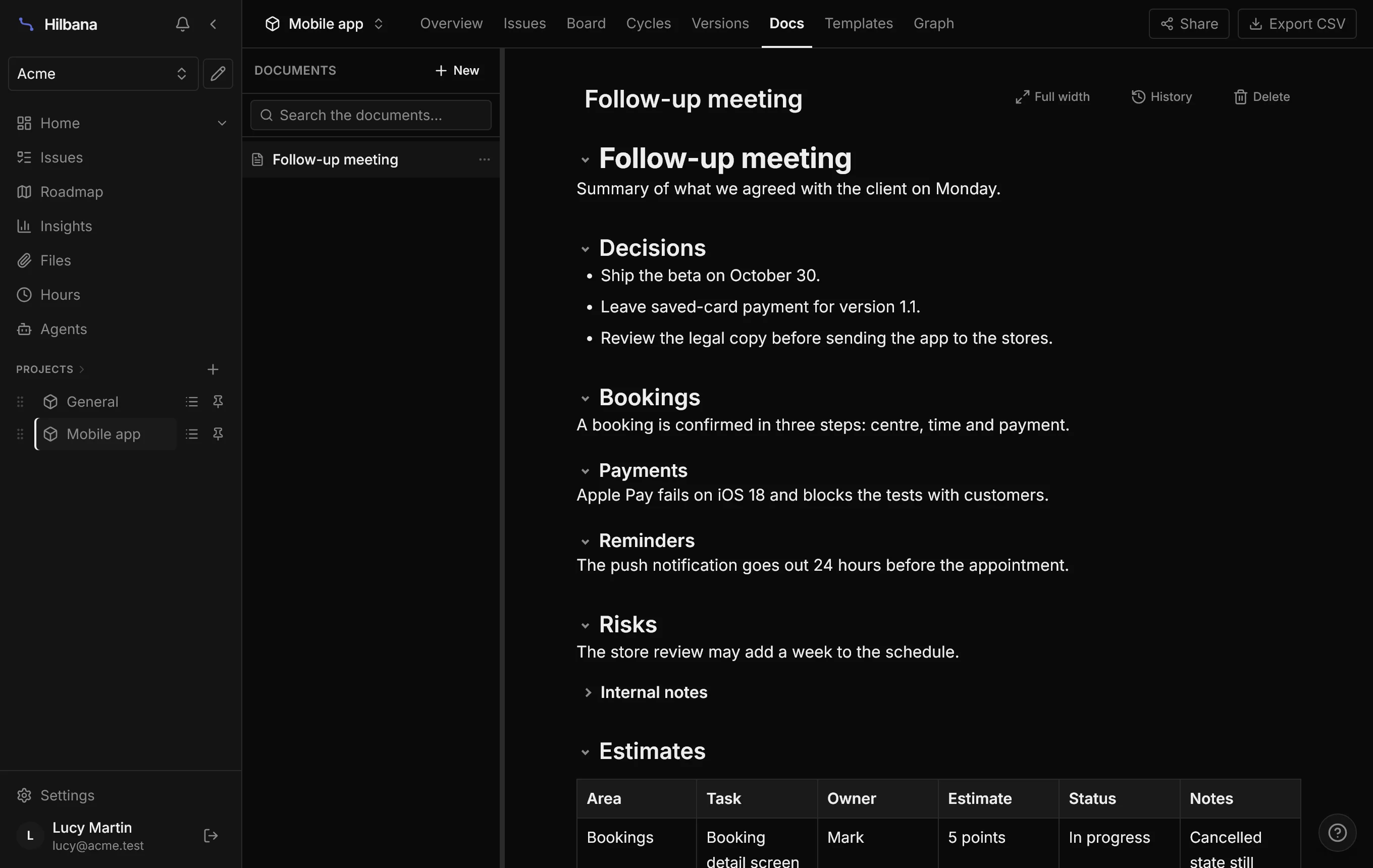
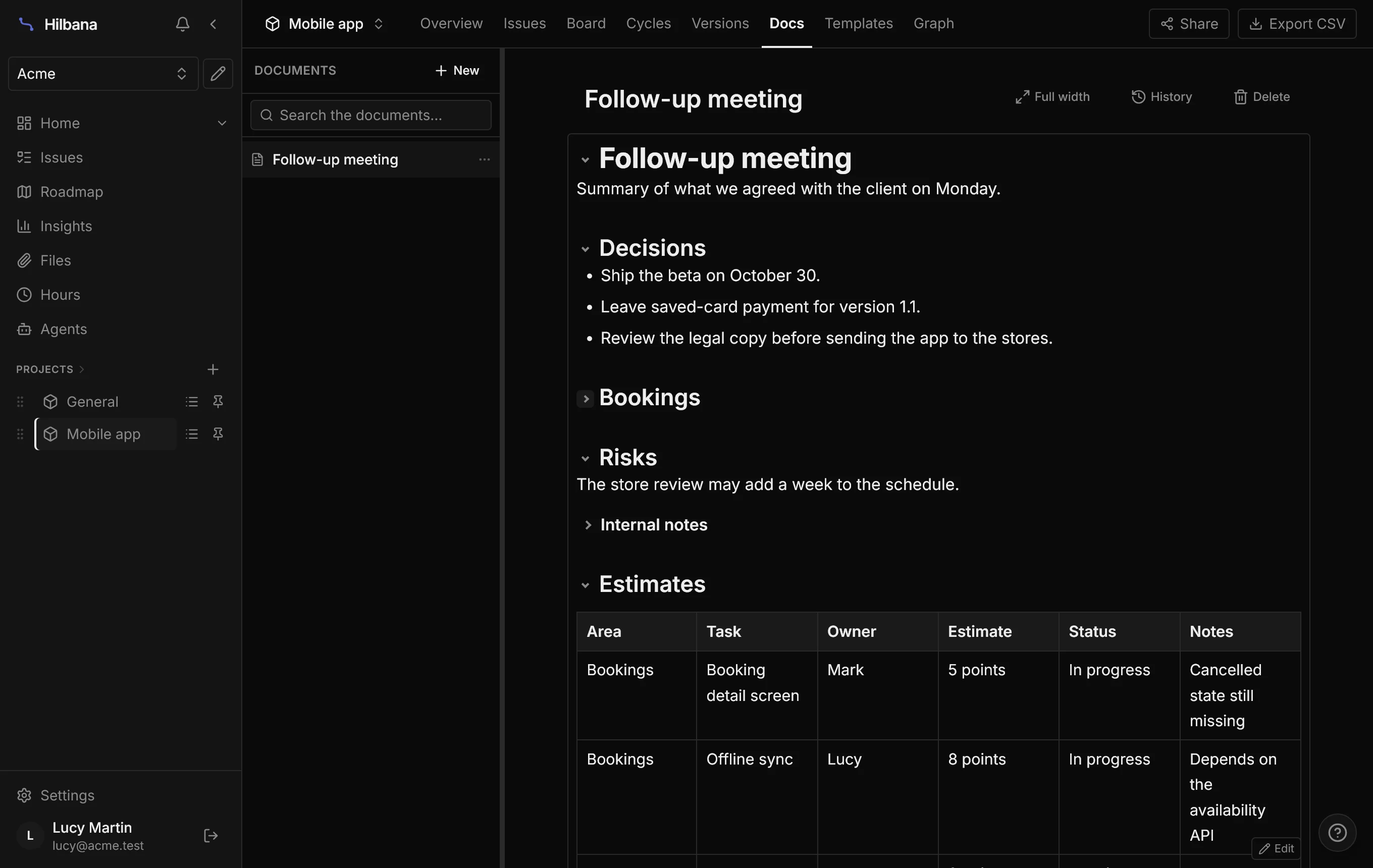
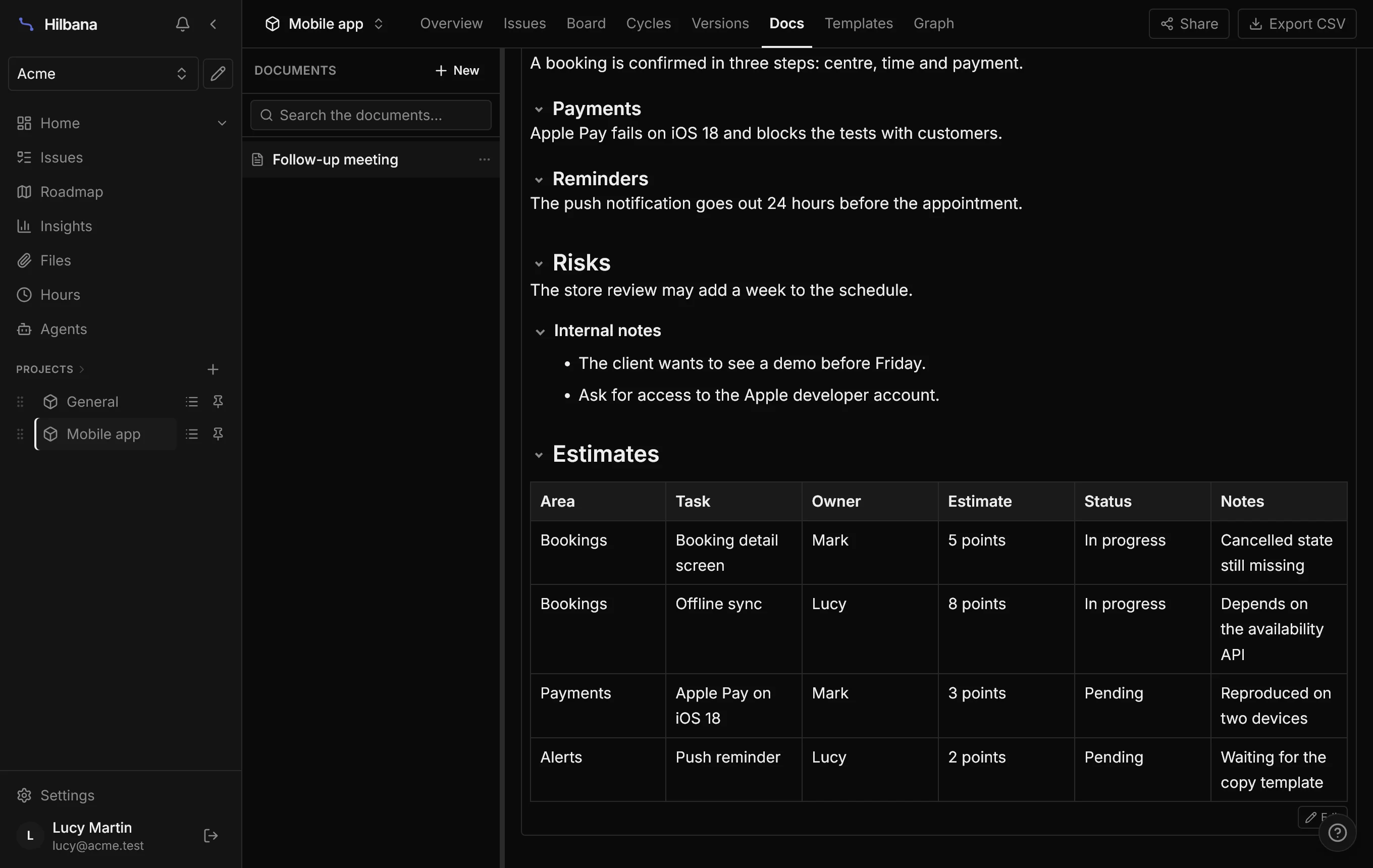
Foldable sections by heading. When reading, every heading has an arrow that folds its section: everything below it up to the next heading of the same level or higher. A ## folds up to the next ##, with its ### inside. It starts fully expanded, and while editing there are no arrows and everything shows.
Collapsible blocks. Type / and pick Collapsible block to tuck away what not everyone needs: a long log, internal notes, an analysis. While editing it is always open; while reading it starts folded and opens when you click its title.
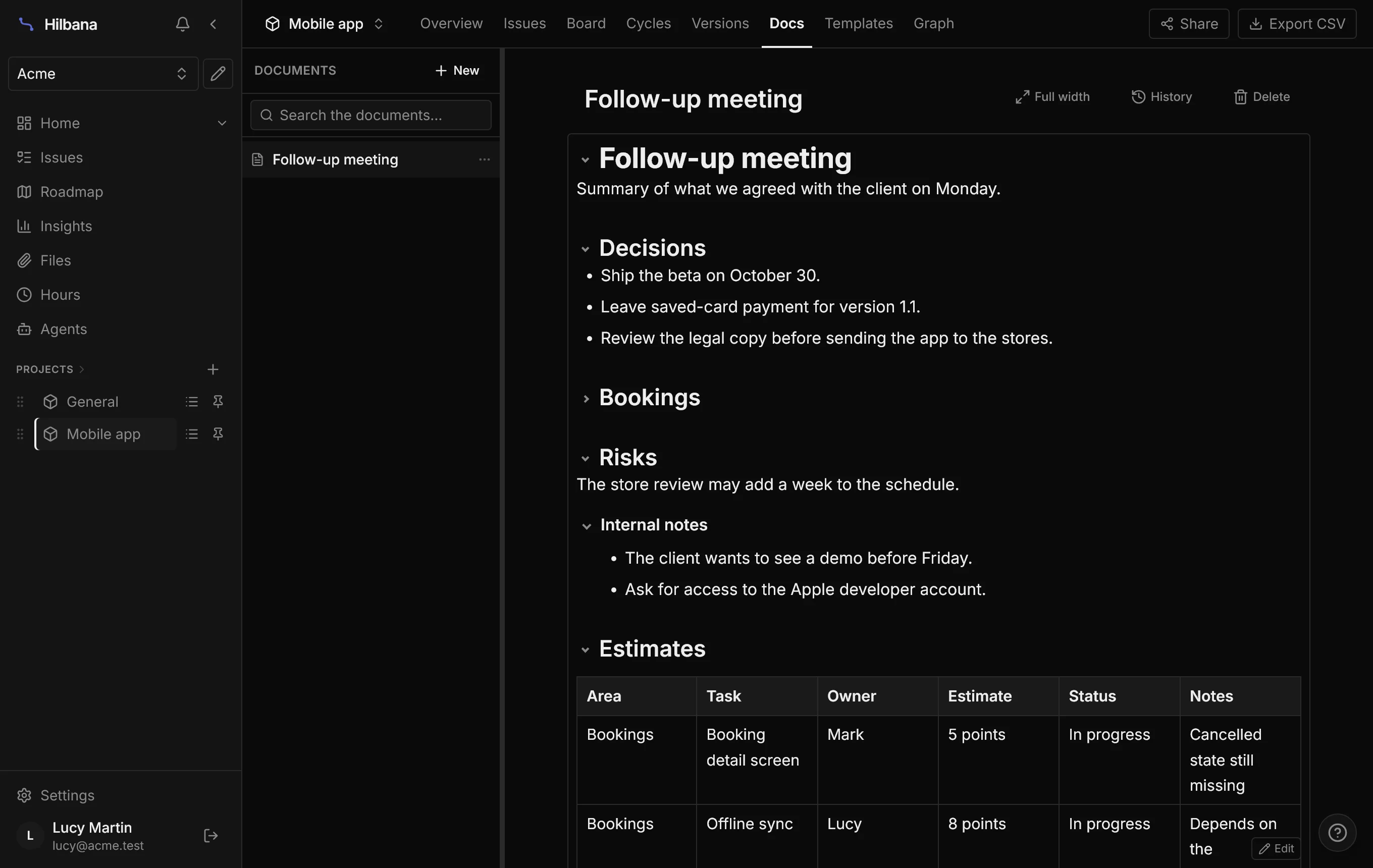
Both are only about the view. What is stored is still standard markdown (the collapsible block is a <details>, which GitHub also folds), so an agent reading the document over MCP sees all of it, with nothing hidden.
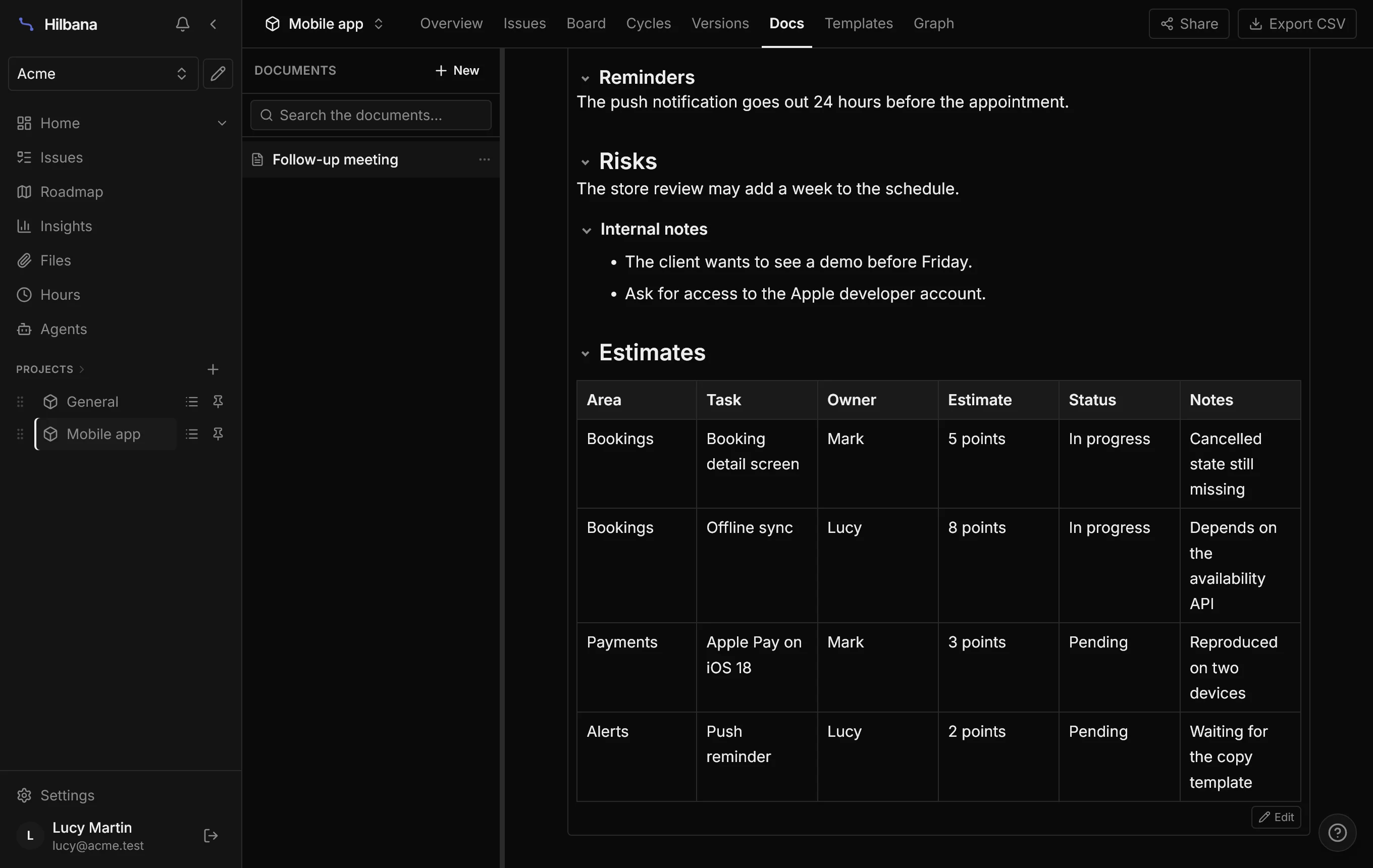
Full width. Wide tables were cramped in the reading column. Now, next to History, there is a button that switches between the usual width and all the available width, and it remembers your choice.
In short
- The Updates section, the first thing on the project overview, keeps the status history. It isn’t the report: it’s short and you publish it.
- Draft with AI prepares a draft from what happened since the last one; you review it, edit it and publish it. Nothing goes out on its own.
- Publishing notifies the team, updates can be corrected and deleted, and agents read them over MCP.
- In documents, foldable sections and blocks for long text and full width for tables.
The details are in the docs for status updates and the editor.
Create your workspace for free at app.hilbana.com/signup and try drafting your project’s next update with AI.