
SLA Rules in Hilbana: Notify When a Support Task Is Stuck for 48 Hours
Imagine managing a technical support team. You receive dozens of requests daily, and while the team is efficient, there’s always a risk that a task might get stuck. You don’t want this to happen, especially not unnoticed for more than 48 hours. This is where Hilbana can assist you.
SLA rules (Service Level Agreement) exist for exactly that: so the deadline is watched by the system and not by your memory. In this tutorial you’ll set one up in Hilbana that flags any support task that hasn’t moved in the past 48 hours.
Step-by-Step Guide to Setting Up the SLA Rule
-
Access Hilbana and open the rules configuration panel. Once logged into your account, navigate to the configuration section on the left sidebar. There, you’ll find the ‘SLA Rules’ option.
-
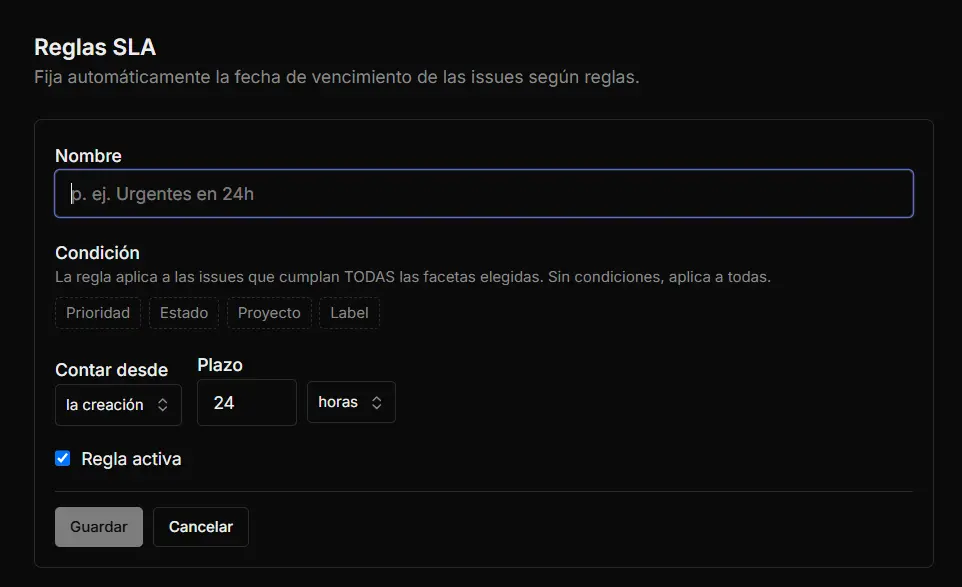
Create a new SLA rule. Click the ‘New SLA Rule’ button. A form will open where you can define your rule parameters.
-
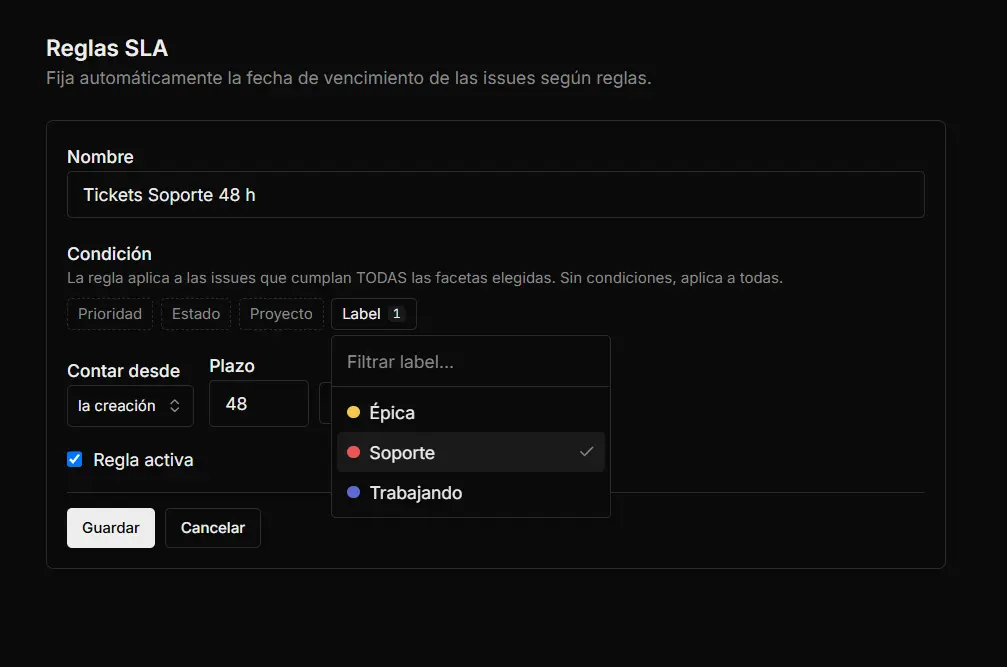
Set the time criterion. In the time field, enter ‘48 hours’. This indicates that the rule will trigger if a task remains inactive for this period.
-
Select support tasks as the target. In the filter section, configure the rule to apply only to tasks tagged as ‘support’. This ensures the rule doesn’t interfere with other project areas.
-
Notification. Tasks with SLA, will show if they are close to expire


-
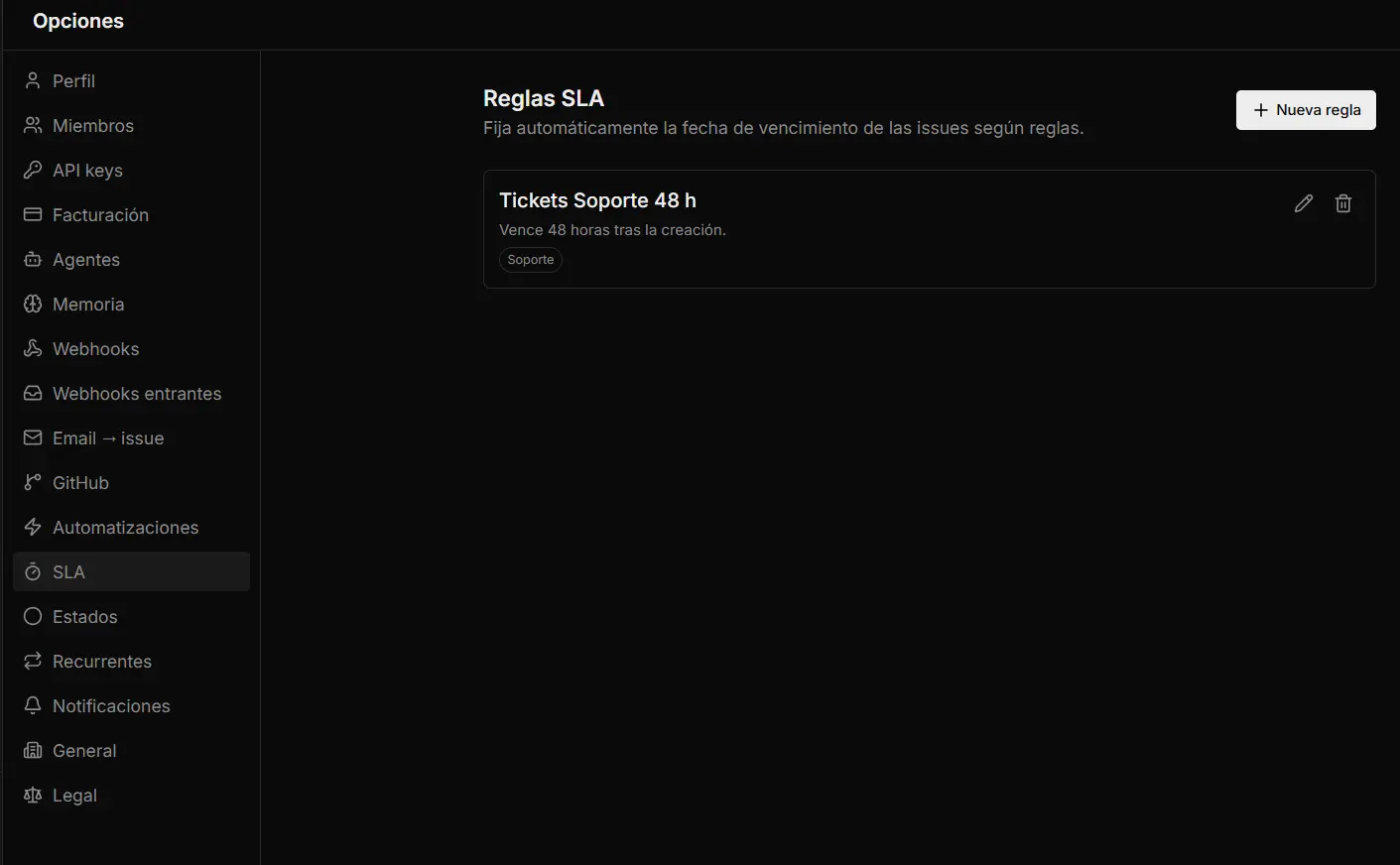
Save and activate the rule. After completing the previous steps, save and activate the rule. Hilbana will begin monitoring support tasks to send alerts if any become stalled.
Outcome
With this setup, you ensure that any support task inactive for 48 hours will send you an alert. This not only boosts your team’s efficiency but also ensures no important request slips through the cracks.
If you don’t have a workspace in Hilbana yet, create one for free: the Free plan doesn’t expire and asks for no card, and signing up includes 14 days of Pro to try due-date rules, which are a Pro feature. The rest of the options are in the documentation.