Hilbana brings in an entire Jira Cloud project: the issues, their statuses, labels, the epic and sub-task hierarchy, and comments with their original dates. Before anything is written you see what will come in and what stays behind, and if you don't like it, you undo it.
Created, updated, resolved and due datesThe same dates
Story pointsEstimate
Epics and sub-tasksParent and child hierarchy
CommentsComments, with their original date
How it works
1
Create an API token in Atlassian
At id.atlassian.com you create a personal token. Copy it when you create it: Atlassian won't show it again. We store it encrypted and never show it back; you remove it with Disconnect or from Atlassian.
2
Connect Jira in Settings → Import
You need to be the workspace owner. Enter your site URL (something like yourcompany.atlassian.net), your Atlassian email and the token.
3
Choose what to bring and where
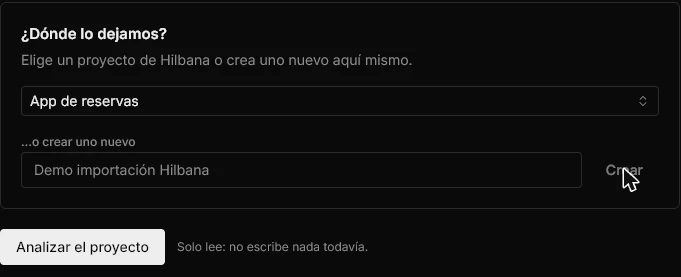
A Jira project, with its issue count, and the destination project in Hilbana: an existing one or a new one created on the spot.
4
Analyze
A read-only preview: it tells you how many issues, comments, labels and people there are, what will be dropped, and proposes the mappings.
5
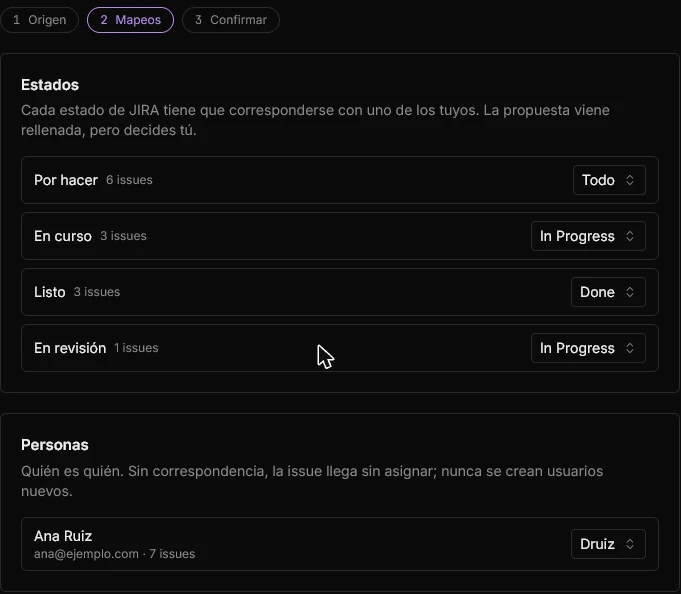
Confirm statuses and people
Each Jira status maps to one of yours, with the proposal already filled in. An unassigned status blocks the import: no issue lands in a guessed state. People are matched by email (or by name if your Jira hides it) and new users are never created.
6
Review and run
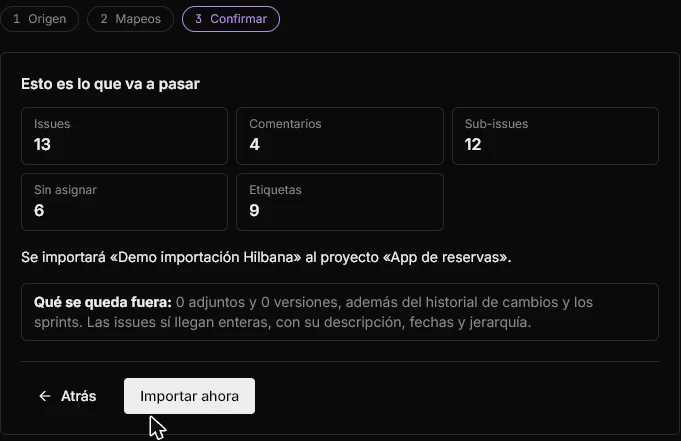
The last step repeats the numbers and says what stays out. Only then does it write. A large project takes a while and you see the progress.
And this is how it ends up
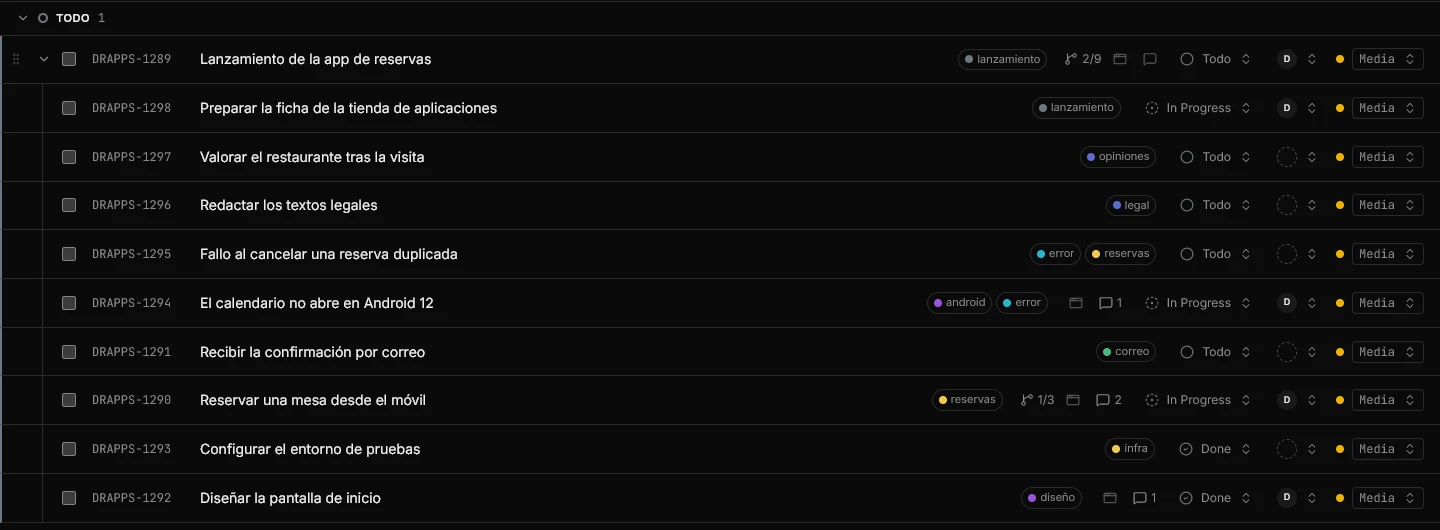
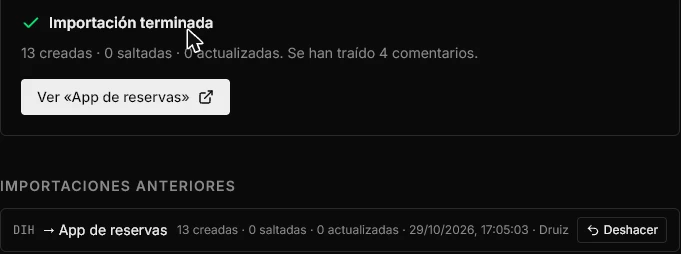
When it finishes you see a summary of what was created and, under Previous imports, the run with its Undo button. Issues land in the project you chose with their hierarchy, labels, statuses and comment count.
With an undo
The analysis only reads: nothing is created in Hilbana until the last step.
Repeating it doesn't duplicate. Hilbana remembers which Jira issue each one came from and skips those already there. If you tick «Update the ones you already imported», they are refreshed from Jira, which overwrites what you changed in Hilbana since.
Every run has Undo in the history: it deletes the issues and comments of that run, and tells you how many first. Labels stay.
It is a one-off move, not a sync: what you change on one side doesn't travel to the other.
Good to know
It is on every plan, Free included, and you need to be the workspace owner.
On Free, 200 issues come in per import: the confirmation step tells you how many are left out. Paid plans have no cap.
Imported issues get their own Hilbana identifier, not the Jira one.
On Jira Server or Data Center?
The importer is for Jira Cloud only. Atlassian has announced the end of Data Center for March 2029; if you are there, the way today is your agent: with the Hilbana MCP connected it can read your Jira and create the issues.How to connect your agent.
Jira and Hilbana, no spin
Stay on Jira if…
You depend on Atlassian Marketplace apps or integrations with the rest of its suite.
You need highly customized workflows, permissions or reports, or service management (Jira Service Management).
You're a large organization with processes already built on Jira and nobody wants to touch them.
Hilbana fits if…
Your team works with AI agents and you want them to read and write in the tracker over MCP, and to remember what they learned between sessions.
You want a tracker that is simpler to run, without the setup and upkeep Jira carries.
You want to try it with no risk: the import is free, doesn't touch your Jira and can be undone.
If you're unsure, import one project and compare them side by side: your Jira stays as it was.
Import one project and compare
Create your free account, connect Jira and look at the preview. Nothing is written until you confirm.
We use necessary technical cookies and, only if you accept, Google cookies to measure our audience and how our campaigns perform. You can change your mind at any time.