Dedicated instance (Enterprise)
Your own Hilbana, on your domain and with your company sign-in: what it is, what your IT team does and how it's activated in an afternoon.
With the Enterprise plan, your organization gets its own dedicated instance of
Hilbana: an installation that’s yours alone, on your domain (for example,
hilbana.yourcompany.com) and with its own database. It shares no server and no data
with any other customer.
We host it, update it and back it up. It gets the same updates as the rest of Hilbana, on the same day. Your team doesn’t install or maintain anything.
What your IT team does
Just two things, both configuration:
- Register Hilbana in your Microsoft Entra ID, so your team signs in with their Microsoft account. It takes an Entra ID administrator about 10 minutes, and we give you the exact steps.
- Create a few records in your domain’s DNS: the instance address and the ones for email signing. You never touch the email or the SPF of your main domain: everything hangs off the instance’s subdomain.
We take care of the rest: the server, the HTTPS certificate, sending email from your domain and setting up sign-in.
Activation, step by step
The person in charge you name activates it. Until they’re done, nobody else can get into the instance, even if they know its address.
1. The missing records, on screen and by email
On their first sign-in, the person in charge sees the activation screen. Each check shows its status and, underneath, the DNS record that’s missing, with a button to copy each value.
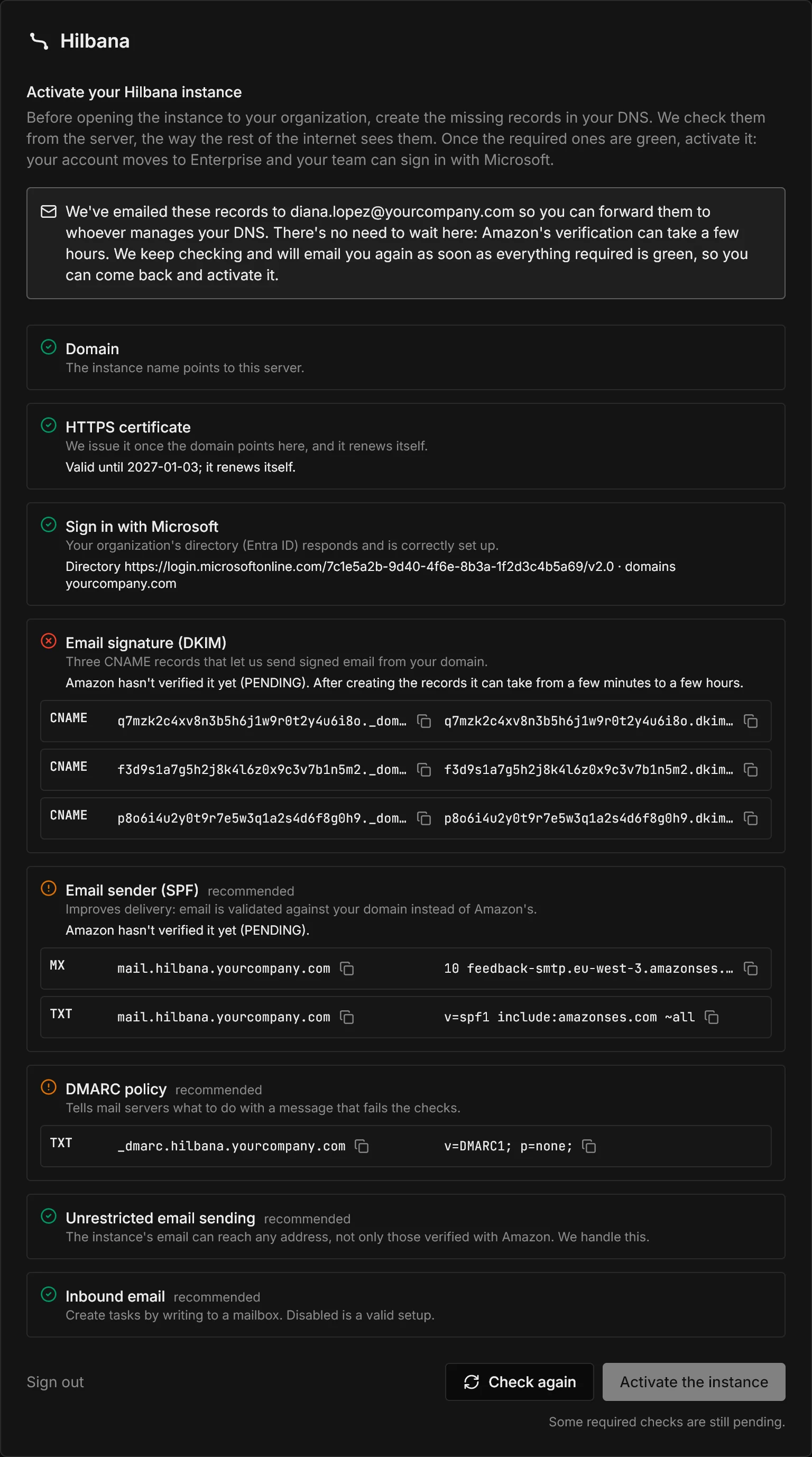
At the same time they get an email with all the records, ready to forward to whoever manages your DNS.
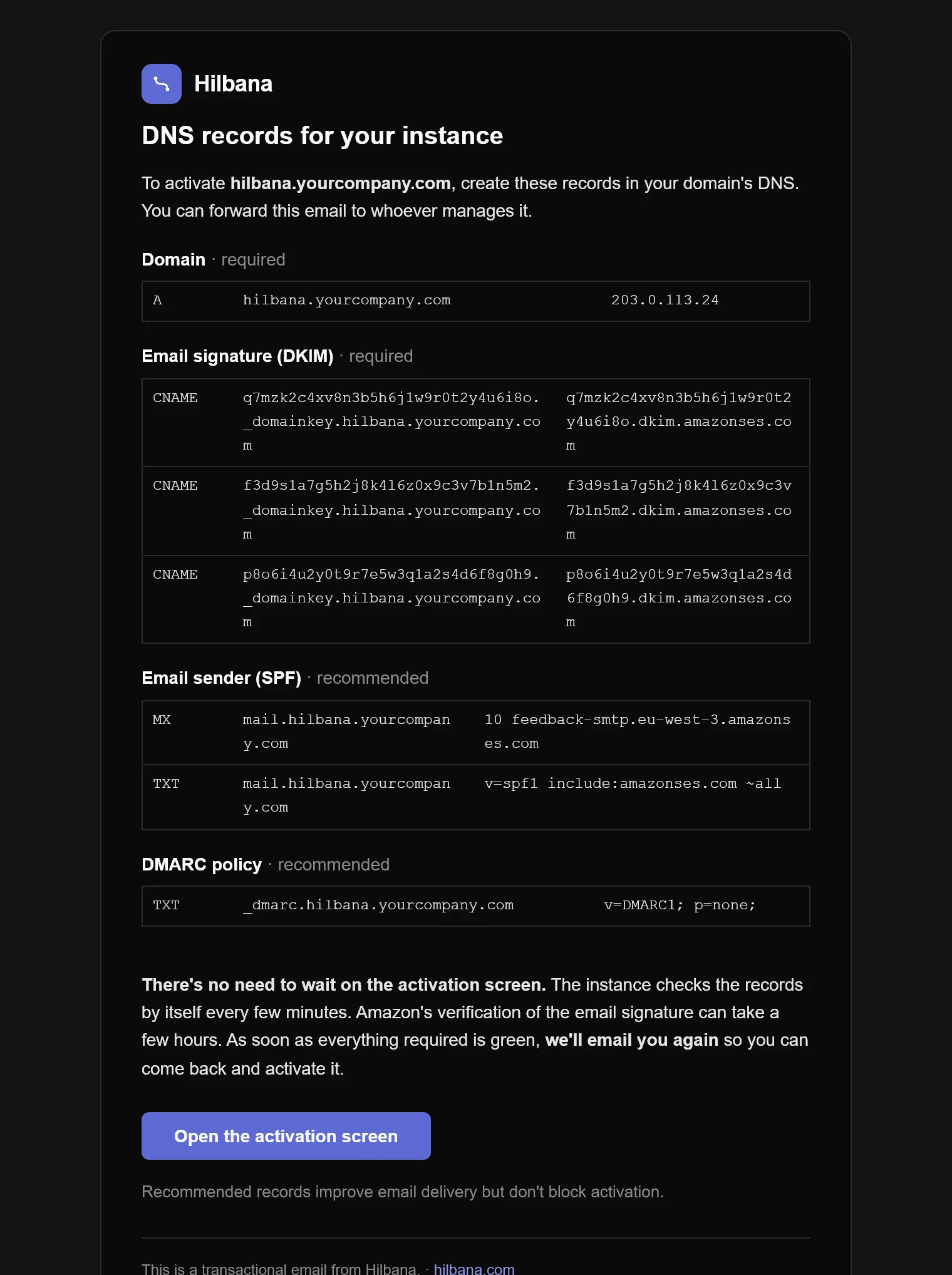
2. No need to wait in front of the screen
The instance checks the records by itself, every few minutes. What takes longest is Amazon verifying the email signature, which can take anywhere from a few minutes to a few hours. Once everything required is green, we email them:
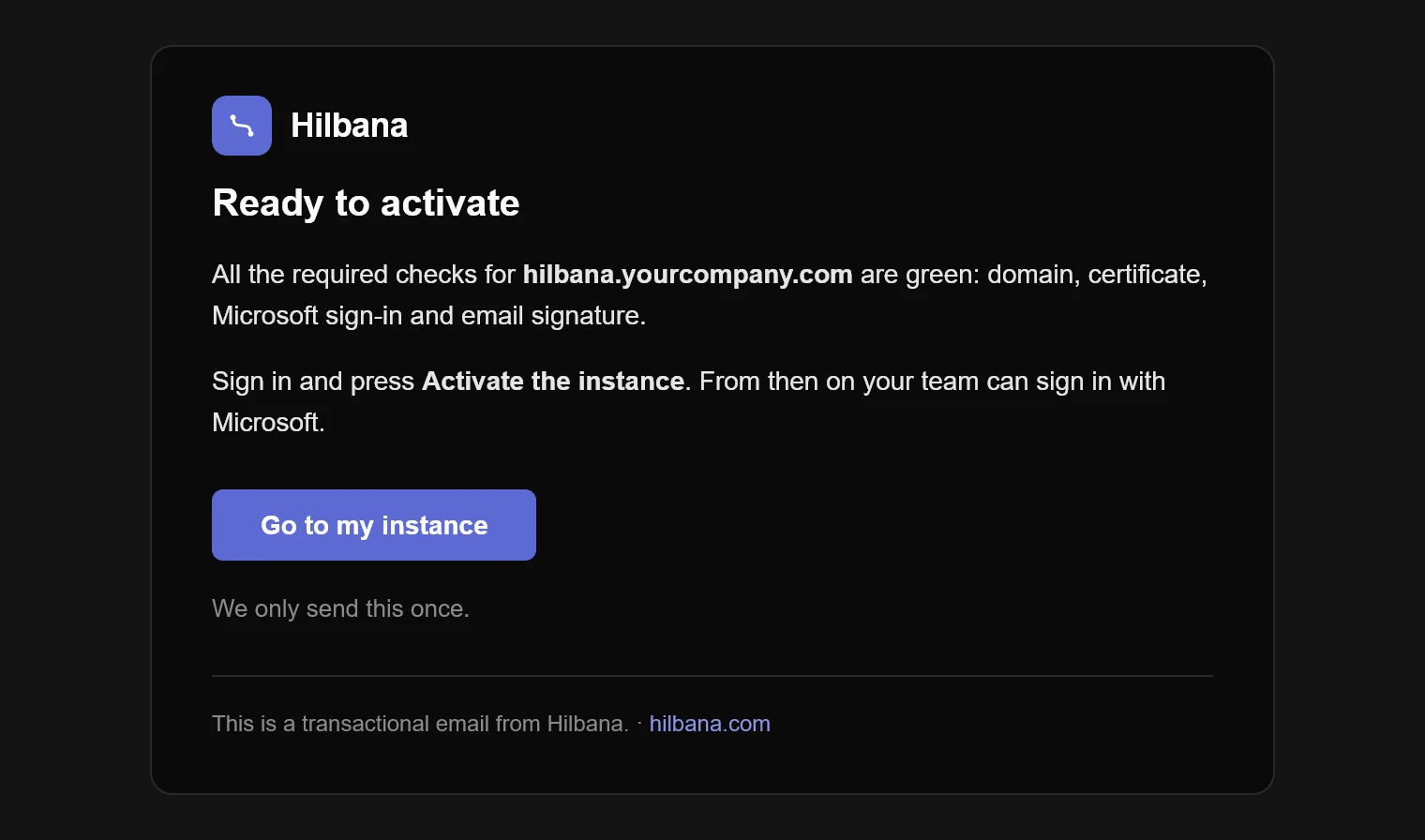
3. Activate
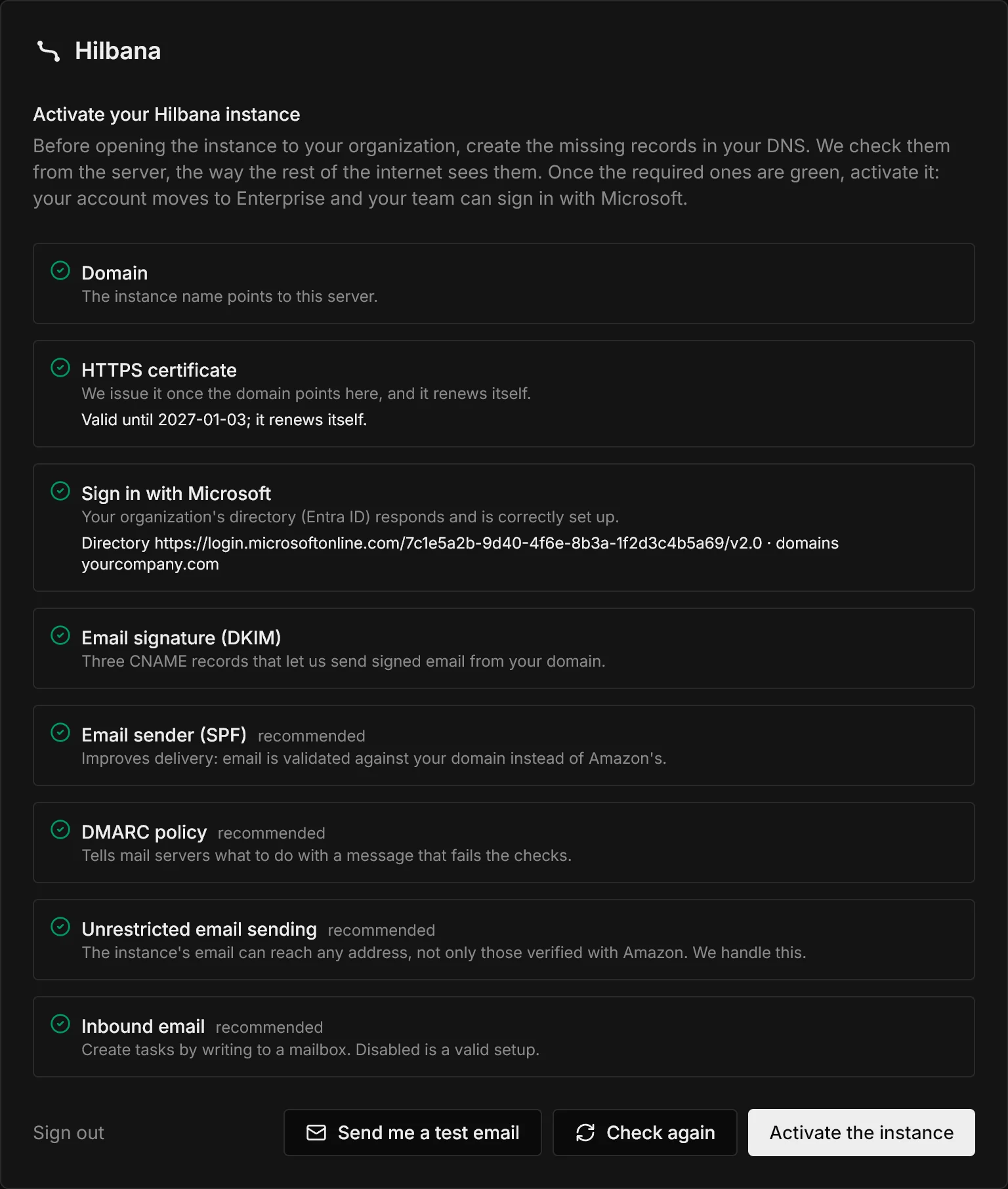
They sign in again, see everything green and press Activate the instance. Their account moves to Enterprise and, from then on, the rest of the team can sign in.
How your team signs in
With Sign in with Microsoft, using their company account. The first time someone signs in, their account is created automatically: no invitations to send and no passwords to hand out. Only accounts from the domains you give us can sign in this way.
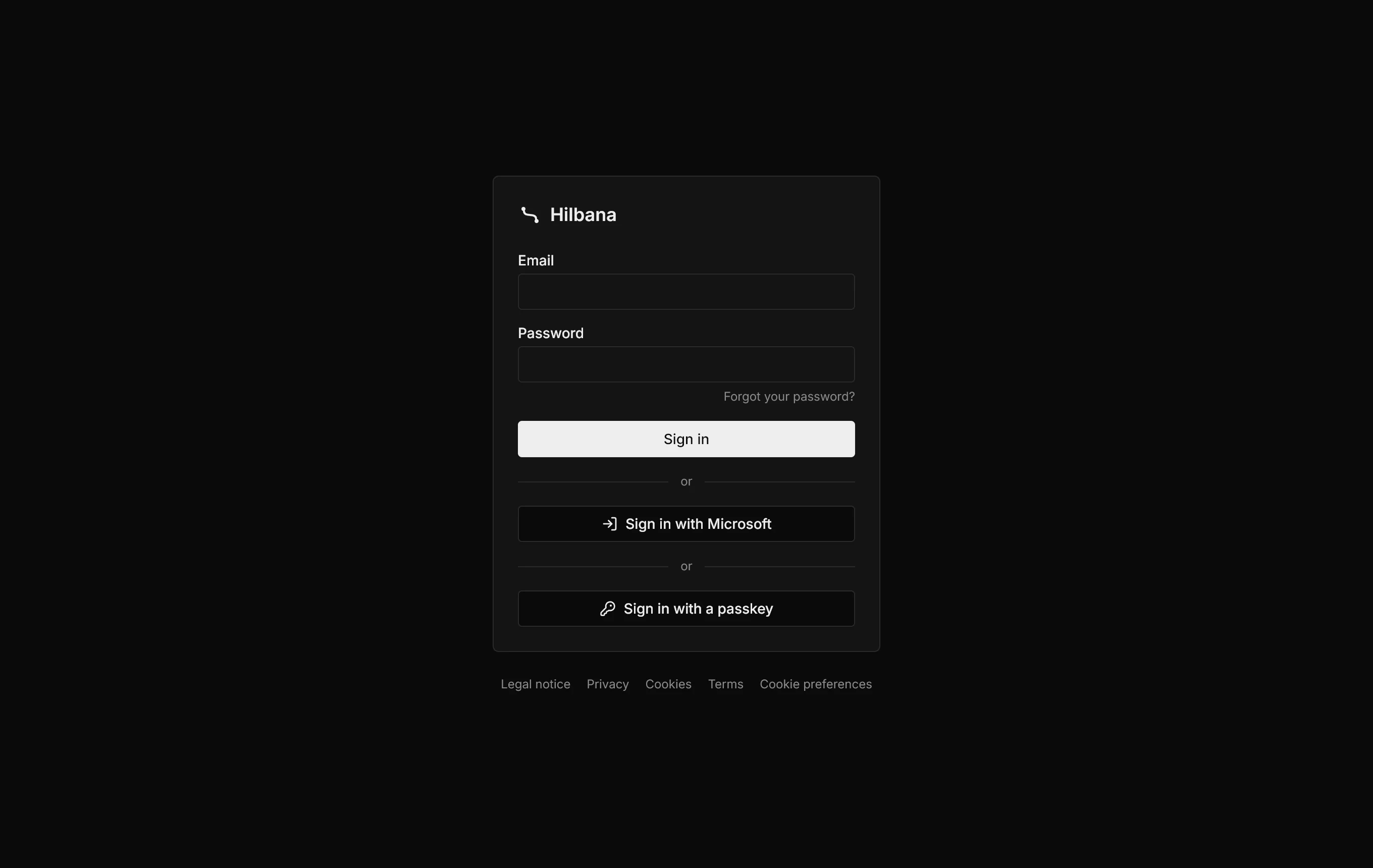
People outside your organization (a supplier, a client) can still take part if they’re invited: they sign in with their email and a password.
Your instance’s status, always in view
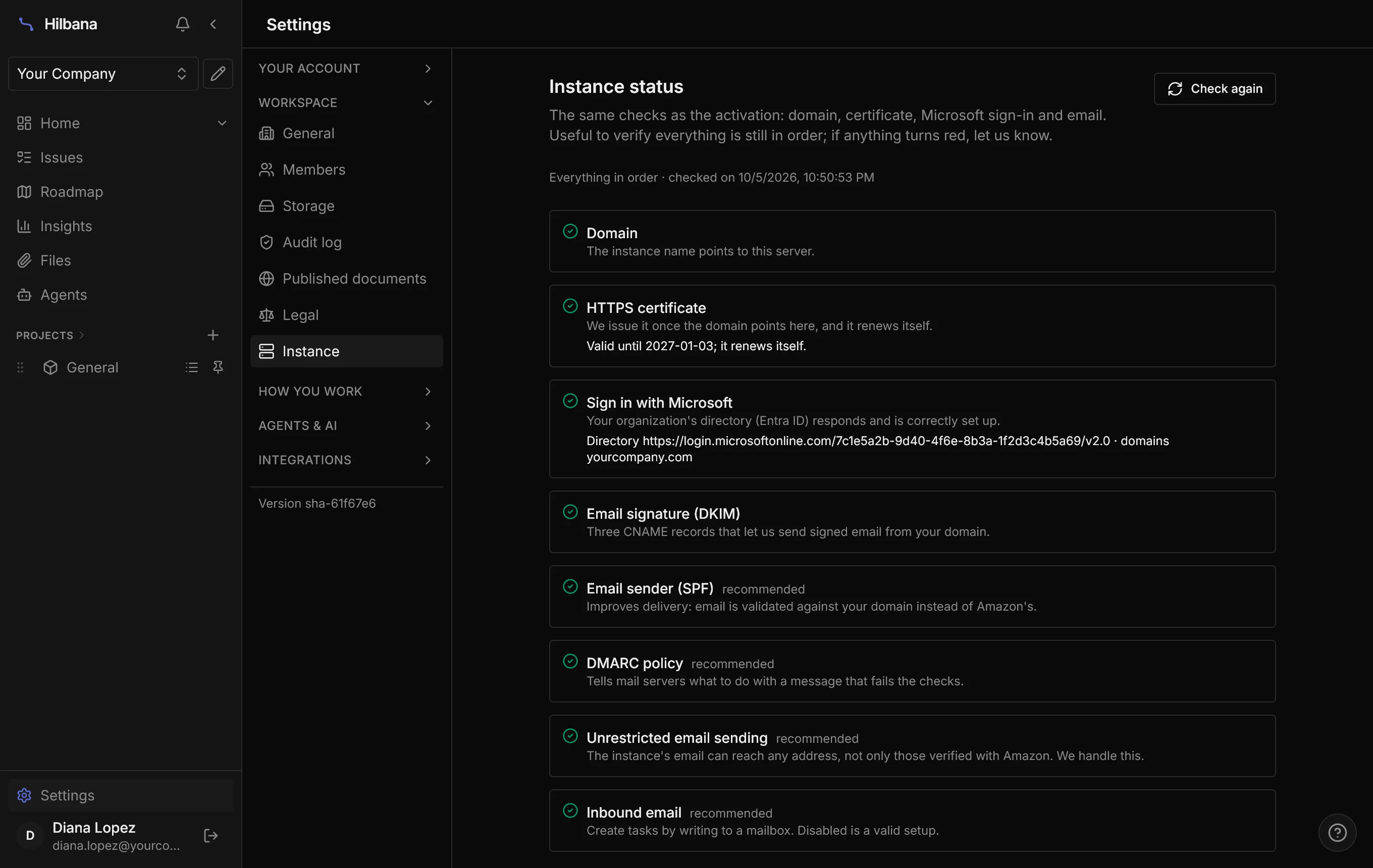
After activation, the person in charge has the same checks under Settings → Instance: domain, certificate and its expiry, Microsoft sign-in and email, with a button to check again. It’s how you can verify for yourselves that everything is still in order.
How to get started
Enterprise isn’t bought from the app: we agree it with you. See what each plan includes in Billing & plans and write to us to talk it over.